Configuring Custom Dashboard Columns
Use the Custom Dashboard Columns page to define custom columns for optional display in the Dashboard control. The custom columns option is available when viewing Dashboard data in Device data mode.
When selected on the options pane, the custom columns will be displayed as additional fixed columns, to the right of the other fixed Dashboard columns selected. The optional columns can be used to display data such as communication statistics in the Dashboard control, from a targeted polling facility, linked facility, remote device facility, or communication facility. You can also access audit history information from this page.
|
Custom Dashboard Columns |

You must have proper security authorization to configure custom Dashboard columns. See FMS Security (and ACCESS security event) for information about configuring security access to administrative options.
Configuring Custom Columns
On the Admin menu, click Options, then Custom Dashboard Columns to define custom columns for your Dashboard.
|
Custom Dashboard Columns |
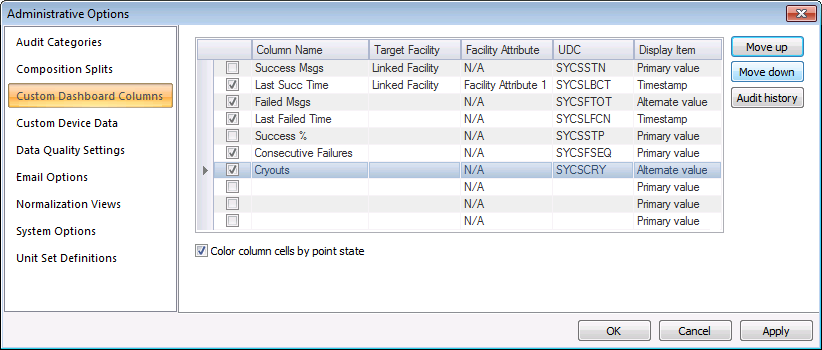
There are 10 customizable columns available for use in the Dashboard. The properties for the Custom Dashboard Columns page of the Administrative Options dialog box are described in the following table.
| Parameter | Description |
|---|---|
| [Custom Dashboard Columns list] | |
|
|
Click the check box to indicate that the custom column will be displayed. |
|
Column Name |
Specify a name for each custom Dashboard column you will be using. Maximum character count is 30. Custom columns will appear to the right of other fixed columns in the Dashboard. The custom columns will appear in the order listed. The order can be changed using the Move up and Move down buttons. |
|
Target Facility |
To populate data into the custom column field from a target facility (instead of the polling facility), select the type of facility from the options in the drop-down menu. Options are as follows.
This parameter is required. |
|
* Facility Attribute |
If you are populating data into the custom column field from a Target Facility that is a Linked Facility type, select the Facility Attribute value containing the linked facility from the options in the drop-down menu. Options include all text facility attributes 0 through 39. Default value is the first facility attribute value listed. |
|
UDC |
Enter a UDC with which to populate the column with data in one of the following ways.
Note: The pairing of the target facility and the UDC determines what will be displayed in each column cell, therefore cells without associated values for both fields (e.g. file imports, which have no associated polling facility) will display [NR] (facility not resolved) in the cell. See [NR] in the CygNet Measurement Concepts topic for more information. |
|
Display Item |
Select the display item to map into the field, from the drop-down menu. Options are as follows.
|
|
Color column cells by point state |
Click the check box to select/clear the appearance of coloring in the custom column cells. If selected, coloring is determined by the point state value of the cell. It is not configurable. |
|
Move up |
Select a custom column row and then click Move up to move the column higher up in the list. |
|
Move down |
Select a custom column row and then click Move down to move the column further down in the list. |
|
Audit history |
Click Audit history to view the Audit History for the selected custom Dashboard column item. See Viewing Audit History for more information. |
 [column selection]
Selecting a Uniform Data Code (UDC)
Select a UDC to associate with each custom column you will be using. First click to select a custom column, then click in the UDC column, and then click ... or press F4 to access the Select a Uniform Data Code dialog box.
|
Select a Uniform Data Code |
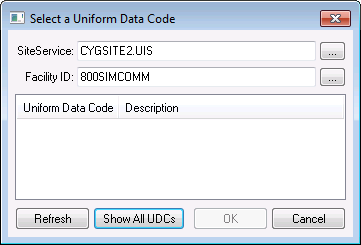
The properties for the Select a Uniform Data Code dialog box are described below.
| Parameter | Description | |
|---|---|---|
|
SiteService |
Select the current value service (CVS) from which to retrieve data. Type the Site.Service name into the text box, or click ... to access the Select Service dialog box. |
|
|
Facility ID |
Select the Facility ID. Type the name into the text box, or click ... to access the Select a Facility ID dialog box. Note: You can also add or edit a facility from this dialog box. |
|
|
Uniform Data Code |
Lists the UDCs associated with the selected facility. |
|
|
Description |
Lists the descriptions of the corresponding UDCs. |
|
|
Refresh |
Click to refresh the Uniform Data Code list. |
|
|
Show All UDCs |
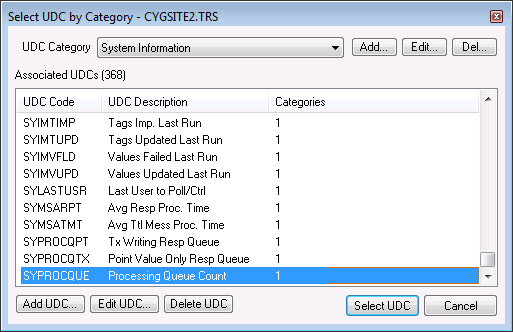
This button is enabled when a Site.Service is selected. Click Show All UDCs to access the Select UDC by Category dialog box.
Select a UDC Category from the drop-down menu. All associated UDCs will be displayed in the list. Select the specific UDC desired, and then click Select UDC. Note: If needed, UDC categories or UDCs can be added, edited, or deleted, using the corresponding buttons on the dialog box. |
|
|
OK |
Click OK when done. |